Proof from the product
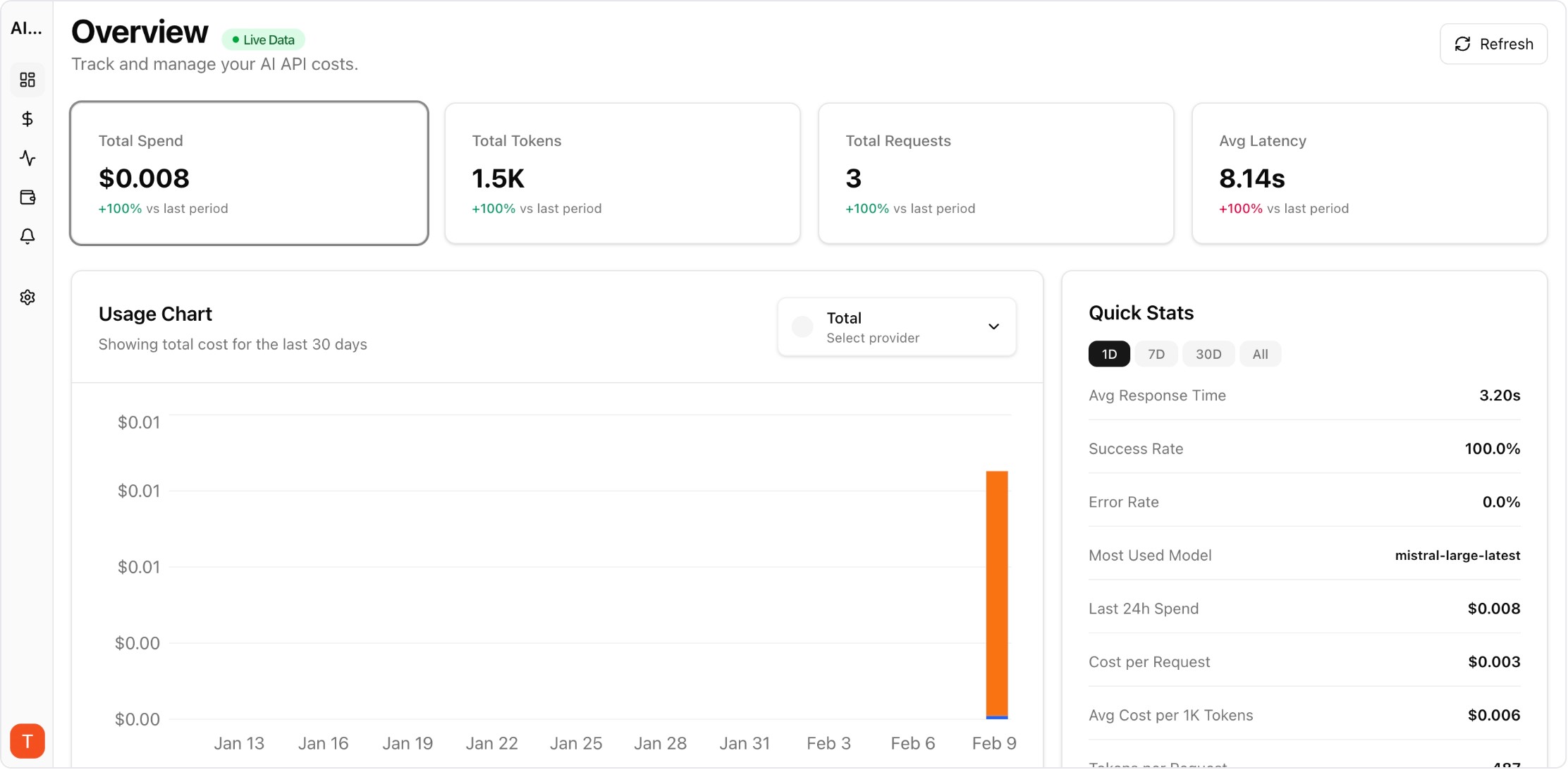
Real UI snapshot used to anchor the operational workflow described in this article.
Switching from ChatGPT to Claude used to mean starting from zero — re-explaining your job, your preferences, your projects, and your communication style. With Claude Memory Import, you can now transfer your entire ChatGPT context to Claude in minutes. Here is the complete migration guide, from exporting your ChatGPT memory to verifying everything transferred correctly.
Real UI snapshot used to anchor the operational workflow described in this article.
Open ChatGPT and start a new conversation. Use this prompt to export your context: "Please provide a complete summary of everything you know about me, including: my name, job, location, communication preferences, technical stack, recurring projects, behavioral instructions I have given you, formatting preferences, and any other stored context. Be as detailed and specific as possible, using my exact words where you remember them." Save the response as a text file — this is your portable AI memory.
Before importing into Claude, review the exported text. ChatGPT may include outdated information, duplicate entries, or context you no longer want. Remove anything irrelevant and add any missing details. Organize the export into clear sections: Personal Info, Work Context, Communication Style, Technical Preferences, and Project Details. Clear formatting helps Claude parse and store the information accurately.
Open Claude (web or Desktop), go to Settings, then Capabilities. Look for the memory import option or the home screen import card. Paste your cleaned-up export text and click Add to memory. Claude will process the text and extract individual memory items. This usually takes a few seconds. You will see a confirmation showing how many memory edits were created.
Within 24 hours of importing, go to Settings and select Manage edits to review what Claude stored. Check that key information transferred correctly: your name, role, preferences, and project context. If anything is missing or incorrect, you can manually add or edit individual memory items. Test Claude with a few typical requests to confirm it responds according to your imported preferences.
If you are migrating production API workloads from OpenAI to Anthropic (not just personal chat), the context migration is only half the story. You also need to track how costs change between providers. GPT-4o and Claude Sonnet 4 have different pricing structures, and your actual costs depend on prompt patterns and output lengths. Use a tool like AI Cost Board to monitor costs across both providers during the transition period — run both in parallel, compare actual per-request costs, and switch fully once you have validated the cost impact.
If Claude did not import certain details: (1) Non-work personal context may be filtered — Claude is designed for professional collaboration. Add personal details manually if needed. (2) Very long exports may lose some items — split into multiple smaller imports. (3) Ambiguous instructions may not be stored — rephrase as clear directives. (4) Some ChatGPT-specific instructions (like browsing or DALL-E preferences) do not apply to Claude and will be ignored.
Multi-Provider LLM Strategy: How to Reduce Risk and Improve Uptime in Production
provider-strategy · how-to
LLM Retry Policy Cost Impact: How Backoff Rules Change Your AI Bill
provider-strategy · commercial
Shadow Traffic Provider Evaluation: Compare LLM Providers Without User Risk
provider-strategy · problem
AI Cost Anomaly Detection Playbook for High-Volume LLM Products
observability · how-to
Migrating from ChatGPT to Claude no longer means losing your AI context. Export, clean up, import, verify — and you are up and running with Claude in minutes instead of weeks.