Proof from the product
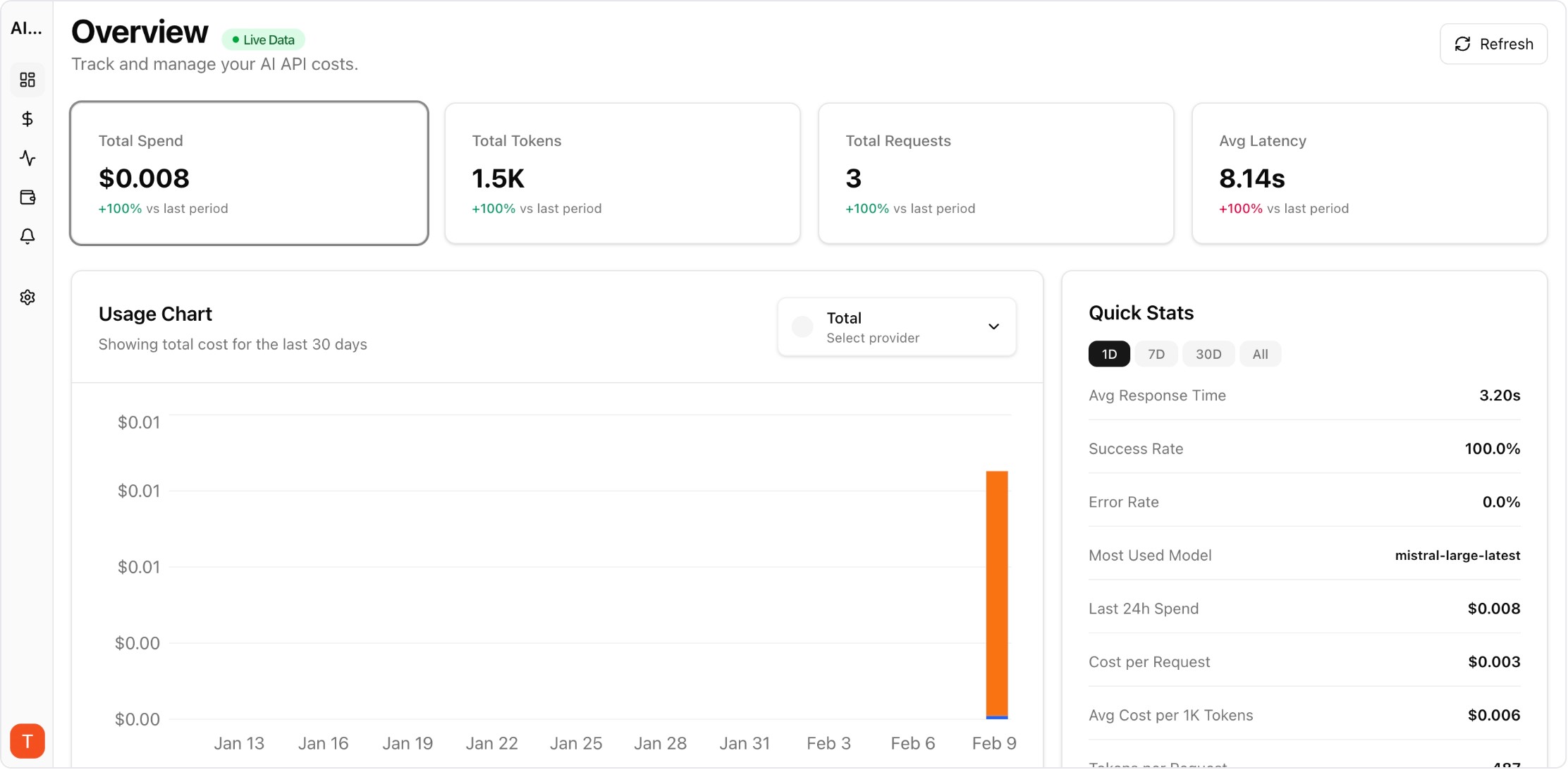
Real UI snapshot used to anchor the operational workflow described in this article.
Anthropic launched a powerful new feature: Claude Memory Import and Export. For the first time, you can transfer your entire AI context — response preferences, personal information, project knowledge, and behavioral corrections — between Claude and other AI assistants like ChatGPT or Gemini. This means no more starting from scratch when you switch providers or want to back up your AI relationship. Here is exactly how it works.
Real UI snapshot used to anchor the operational workflow described in this article.
Claude Memory is the system that lets Claude remember information about you across conversations. It stores your name, job, location, communication preferences, technical stack, recurring projects, and behavioral corrections you have made over time. Think of it as Claude building a profile of how to best assist you. Memory is available on all Claude plans — Free, Pro, Max, Team, and Enterprise — on both web and Claude Desktop.
To export your Claude memory: Go to Settings, then Capabilities. You will see your complete memory profile — exactly how Claude sees you. This includes response instructions (tone, format, style), personal information, projects and goals, technical preferences, and any corrections you have made. You can copy this entire profile and save it as a text file or Markdown document. This serves as both a backup and a portable format you can import into other AI tools.
To import context from ChatGPT, Gemini, or another AI into Claude: First, export your context from the other service. Anthropic provides a recommended prompt template that covers all context categories and preserves verbatim language. Then go to Claude Settings, select Capabilities, or use the home screen import card. Paste your exported text and select Add to memory. Claude extracts and stores the information as individual memory edits that you can review within 24 hours.
Claude Memory Import handles several categories of context: (1) Response instructions — your preferred tone, format, and style. (2) Personal information — name, location, job, family, interests. (3) Projects and goals — recurring discussion topics and objectives. (4) Technical preferences — programming languages, frameworks, tools. (5) Behavioral corrections — things you have told the AI to do differently. (6) Any other learned context from your conversation history.
Memory imports are experimental and still in active development. A few things to know: Claude may not retain all non-work-related personal details, as it is designed primarily for professional collaboration. Successful incorporation of all imported memories is not guaranteed. You should review imported changes via Manage edits within 24 hours and manually add any specific information that was not automatically captured. For best results, export in detailed plain text with clear category labels.
AI context portability is becoming essential as teams use multiple AI providers. When you switch between Claude for writing and GPT for coding, or migrate from one provider to another, losing weeks of built-up context is costly — not just in time, but in AI output quality. Tools like AI Cost Board help track the financial side of multi-provider AI usage, while memory portability solves the context side. Together, they make it practical to use the best AI for each task without lock-in.
Multi-Provider LLM Strategy: How to Reduce Risk and Improve Uptime in Production
provider-strategy · how-to
LLM Retry Policy Cost Impact: How Backoff Rules Change Your AI Bill
provider-strategy · commercial
Shadow Traffic Provider Evaluation: Compare LLM Providers Without User Risk
provider-strategy · problem
AI Cost Anomaly Detection Playbook for High-Volume LLM Products
observability · how-to
Claude Memory Import and Export removes one of the biggest barriers to AI provider flexibility. Export your context as a backup, import it when switching providers, and never lose your AI relationship again.