Proof from the product
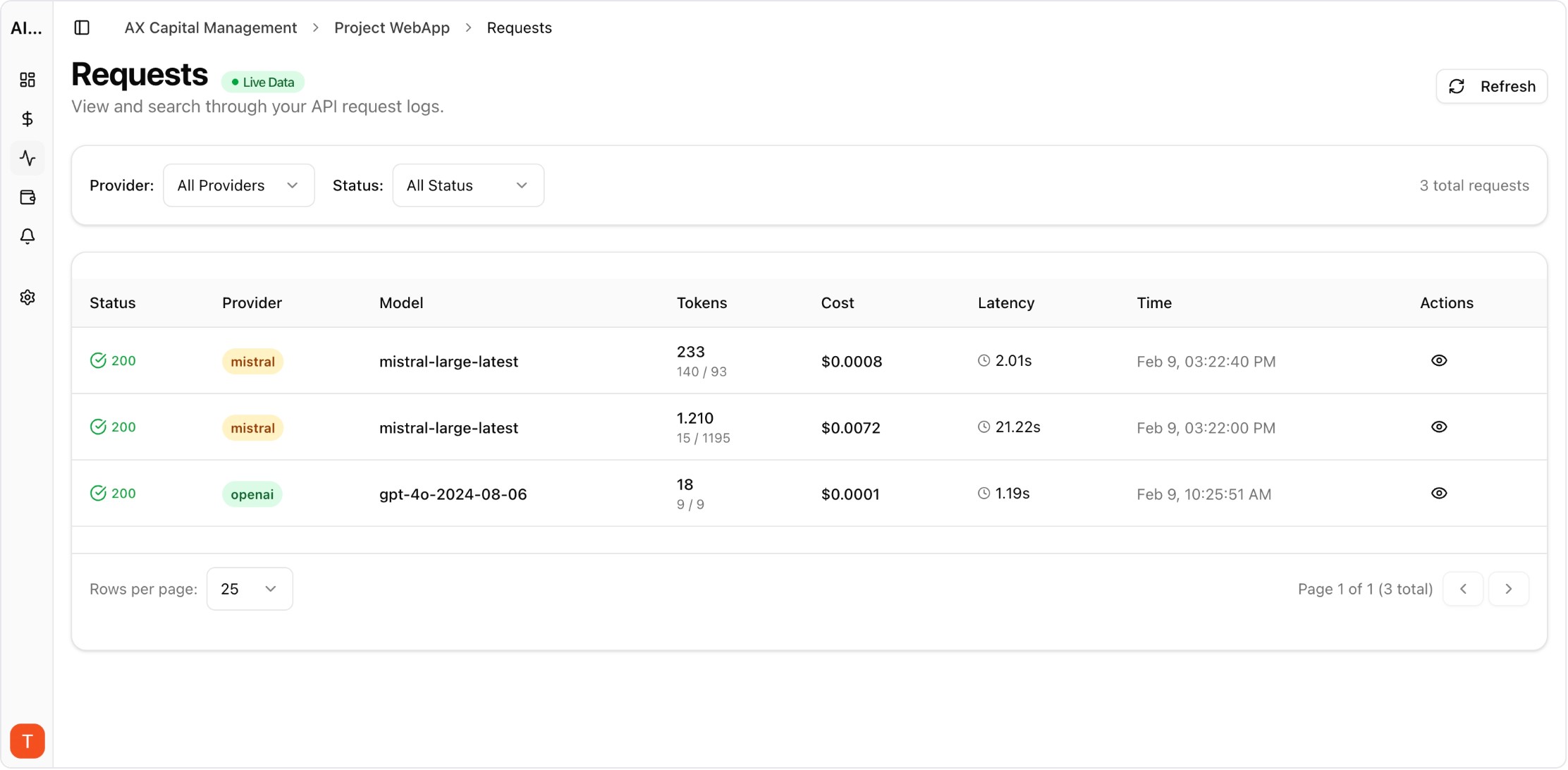
Real UI snapshot used to anchor the operational workflow described in this article.
Budget overruns from LLM APIs are one of the most common and preventable problems in AI operations. A single misconfigured prompt, a retry loop, or an unexpected traffic spike can generate thousands of dollars in API costs within hours. Setting up proper cost alerts takes less than 15 minutes and can save your team from costly incidents. Here is exactly how to configure alerts that catch problems early.
Real UI snapshot used to anchor the operational workflow described in this article.
Configure three alert types: (1) Daily budget alerts — trigger when spend for any single day exceeds a threshold. Set this at 150-200% of your average daily spend. (2) Monthly budget alerts — trigger when cumulative monthly spend approaches your planned budget. Set at 80% and 95% thresholds. (3) Anomaly alerts — trigger when spending patterns deviate significantly from recent baselines. AI Cost Board supports all three types natively.
Start conservative and tighten over time. For daily alerts, use 2x your current average daily spend as the initial threshold. For monthly alerts, set the first warning at 70% of budget and a critical alert at 90%. Track your alert-to-incident ratio — if you get too many false positives, loosen thresholds. If you miss real incidents, tighten them. The sweet spot is 1-2 alerts per week during normal operations.
Global alerts catch total spend issues but miss project-level problems. Configure separate alerts for each project workspace and each provider. A spike in one project hidden within normal total spend is a common blind spot. Per-provider alerts also catch issues like unexpected model upgrades or pricing changes that affect only one provider.
Anomaly detection uses statistical baselines to identify unusual spending patterns. Configure rolling 7-day baselines with 2-sigma deviation alerts. This catches gradual cost creep that budget thresholds miss, as well as sudden spikes. AI Cost Board anomaly detection adapts to your usage patterns automatically without manual threshold configuration.
Build a runbook: (1) Check which project or model is driving the spike. (2) Review recent deployments or configuration changes. (3) Check for retry loops or error-driven request amplification. (4) If the spike is genuine traffic growth, adjust budgets and notify stakeholders. (5) If it is an incident, implement immediate rate limiting and investigate root cause. Fast response to alerts prevents small issues from becoming large bills.
Multi-Provider LLM Strategy: How to Reduce Risk and Improve Uptime in Production
provider-strategy · how-to
Prompt Versioning for Cost Control: Stop Silent Token Creep in Production
governance · commercial
AI Cost Anomaly Detection Playbook for High-Volume LLM Products
observability · how-to
Staging vs Production AI Governance: Prevent Cost and Quality Drift Before Release
governance · problem
Cost alerts are the most important safety net for AI API operations. Set them up before you need them, test them regularly, and build a response runbook so your team knows exactly what to do when alerts fire.